Preview and test
Try an Agent against a sample customer or one of your contacts, continue the conversation as the customer, and know what a preview does not show.
Last updated 2026-10-23
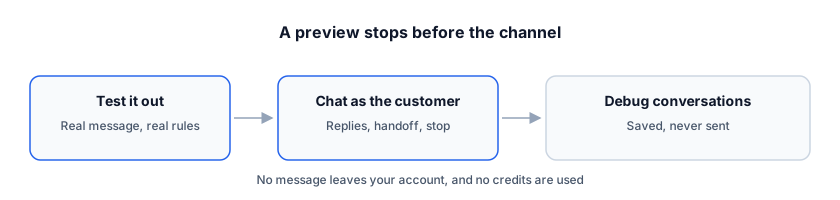
Before an Agent writes to a real customer, try it. Test it out writes a real first message for a customer you pick. The chat in the preview lets you answer it as that customer. Neither sends anything to anyone.
What a preview is not
- It does not send a message. No email, LinkedIn message or WhatsApp message leaves your account.
- It does not consume credits.
- It does not create a conversation in the Agent's Conversation Inbox. It does not notify anyone.
What it does do is run the real writing. It uses the same profile, goal, examples and knowledge bases. For a reply, it uses the same rules the Agent will use with a live customer.
Try a first message
- Open an Agent. In the right column, pick the customer with Switch Lead: a Sample lead, or a contact from one of your lists.
- Pick the channel tab: Email, LinkedIn or WhatsApp. Only the channels enabled in Sending Rules appear.
- Click Test it out. Testing… shows while it writes; Cancel test stops it.
- Read the draft in the channel's own layout. Under it you see the character count and whether it was written from your instructions or modelled on one of your examples.
The draft is a real run of the Agent, so the rules of live writing apply: the length the channel allows and no invented facts. When you continue as the customer, the same handoff and stop rules apply.
Continue as the customer
After the first message is drafted, the chat box in the phone or email frame becomes usable. Type as the customer and send.
- The Agent answers with its reply rules: knowledge base search, attachments it may send, and a handoff or stop when it cannot help.
- Handed off to a person. or Conversation stopped. appears when the Agent ends its part.
- New test discards the thread and drafts a new first message.
For an inbound Agent the right column is Inbound chat preview. You write as the customer first, and the Agent answers with your latest saved settings. The same rules apply — greeting, information collection, handoff and stop.
Limits and speed
- Test it out is capped at 30 requests per hour per workspace. The chat preview — outbound and inbound — is capped at 60 messages per hour, counted separately.
- One test per version runs at a time. Testing the same version again while one is running returns the running one; choosing a different channel or customer replaces it.
- A version must be saved before it can be tested. Clicking Test it out with unsaved edits first saves them as a draft.
- The chat holds up to 30 turns; past that, Chat is full — start a new test.
What a preview does not show
The preview never reads the contact's LinkedIn posts, so the personal opening is missing. A previewed message can therefore differ from the message actually sent; see Personalized openings: outreach hooks.
Also:
- The preview uses the version's saved settings. Unsaved edits are saved as a draft when you start a test or send a chat message.
- The company hook and other enriched facts are used only when you test with a real contact from one of your lists; sample leads carry their own sample facts.
- Files you attach to the Agent are not delivered anywhere; the preview only mentions them.
Where test chats are kept
Every test chat is saved as a Debug conversations entry. Open the Agent's Inbox, and choose Debug conversations in the channel filter. Each entry shows whether it was an Outbound test or an Inbound chat, and whether the Agent Handed off or Stopped. You can continue a test that has not ended, or delete it for good.
A debug conversation only sees the messages saved in it. Continuing one uses the Agent's current saved version.
RenewSell keeps the newest 200 debug conversations per workspace.
NOTE
Debug conversations live apart from real ones. They never appear in the normal inbox view, are never sent, never billed and never become opportunities.